
Hi
Now that you have completed CaseWeb training, I have marked you as trained on the system.
To access Caseweb, please select the link
https://live.caseweb.co.uk/login
You will now see to log in options shown below.
You should click on STAFF SSO Login

This will then take you back to the Caseweb site.
*Please log on CaseWeb within 48 hours to confirm access and notify the CaseWeb Team if you have any access issues.
In addition to this, the training site can be accessed via: https://training.caseweb.co.uk/manual-login
The log in for this would be:
Username: Regional1, Regional2 or Regional3
Password: Caseweb2020
Please refer to the appendix at the end of the user guide for information to use when creating cases on the training site only
CaseWeb Outlook Automail
If you do not see the auto e-mail icon in Outlook ribbon then please contact the service desk who will investigate.

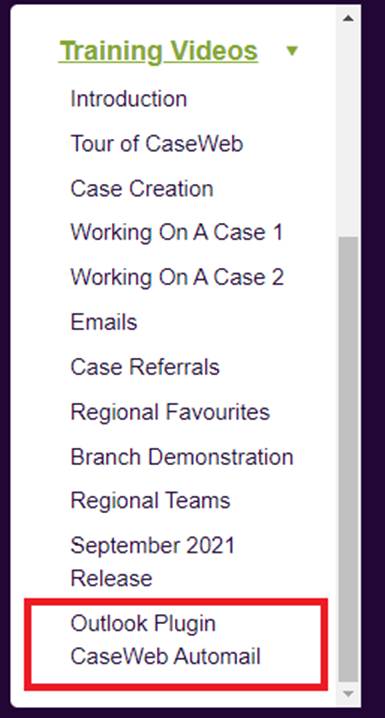
Once it is installed then you can login and commence using the new feature. A training guide is available on the help and support section of CaseWeb which we strongly recommend you view before attempting to use this application. See the below screenshot for its location:
Please note you can still continue to assign e-mails the normal way by sending the e-mail to the branch and reference the case reference in the subject line, but as many pilot users have stated this new method is much easier to use .
If you have any problems, please email any queries to caseweb@unison.co.uk